Can AI replace my paid invoicing app?
Half. AI builds a clean invoice template that calculates totals. Paid apps still win on online payments, reminders and tax reports.
01Why half-bot
- A template with automatic totals is easy for AI.
- Accepting card payments and tracking who paid needs real software.
- For a few invoices a month, a template can be enough.
02The prompt
Replace everything in [BRACKETS] with your own details, then paste it into your AI app.
Create an invoice template for [Google Sheets / Excel / Google Docs].

My business name and contact email: [DETAILS]
What I bill for: [e.g. hourly design work, fixed-price projects]
Payment terms: [e.g. due in 14 days]

Include: invoice number, dates, client block, line items (description, quantity, rate, amount), subtotal, tax line (leave the rate as a blank cell I fill in), total, and payment instructions.
Give me the exact layout and every formula. Explain for a beginner.
03Steps
- Build the template once.
- Duplicate it for each new invoice and update the invoice number.
- Export to PDF to send.
04What can go wrong
- Check your local sales tax rules. Don't let AI guess your tax rate.
05What to use
06Our test runs
2 runs, each with a different made-up sample. 0 of 2 passed every check.
The made-up sample:
[Google Sheets / Excel / Google Docs]Google Sheets[DETAILS]Creative Spark Studio contact@creativespark.com[e.g. hourly design work, fixed-price projects]Hourly graphic design services and fixed-price branding packages[e.g. due in 14 days]Payment due within 14 days of the invoice date
- Include invoice number
- Provide amount formula for line items
- Tax line with blank rate cell
- Add payment instructions
- Didn't make up details we never gave it
What came back (excerpt):
In cell D10 (Subtotal), enter the formula `=SUM(D5:D9)`. This formula adds up the amounts in cells D5 through D9.
Read the full answer
Here's a step-by-step guide to creating an invoice template in Google Sheets:

**Setting up the template:**

1. Open Google Sheets and create a new spreadsheet.
2. Give your spreadsheet a name, such as "Invoice Template".
3. Set up the following columns:
	* Column A: Description
	* Column B: Quantity
	* Column C: Rate
	* Column D: Amount
4. Set up the following rows:
	* Row 1: Header row with business name and contact email
	* Row 2: Invoice number and date
	* Row 3: Client block
	* Row 4: Line items start
	* Row 10: Subtotal
	* Row 11: Tax
	* Row 12: Total
	* Row 13: Payment instructions

**Exact layout:**

|  | A  | B  | C  | D  |
| --- | --- | --- | --- | --- |
| 1  | Creative Spark Studio |  |  | contact@creativespark.com |
| 2  | Invoice Number: |  | Invoice Date: |  |
| 3  | Client Name: |  | Client Address: |  |
| 4  | Description | Quantity | Rate | Amount |
| 5  |  |  |  |  |
| 6  |  |  |  |  |
| 7  |  |  |  |  |
| 8  |  |  |  |  |
| 9  |  |  |  |  |
| 10 | Subtotal: |  |  | =SUM(D5:D9) |
| 11 | Tax (___%): |  |  | =SUM(D5:D9)*E11 |
| 12 | Total: |  |  | =D10+D11 |
| 13 | Payment is due within 14 days of the invoice date. Please make checks payable to Creative Spark Studio. |  |  |  |

**Formulas:**

1. In cell D10 (Subtotal), enter the formula `=SUM(D5:D9)`. This formula adds up the amounts in cells D5 through D9.
2. In cell D11 (Tax), enter the formula `=SUM(D5:D9)*E11`. This formula calculates the tax amount by multiplying the subtotal by the tax rate (which you'll enter in cell E11).
3. In cell D12 (Total), enter the formula `=D10+D11`. This formula adds the subtotal and tax amount to get the total.

**How to use:**

1. Enter the invoice number and date in cells B2 and D2, respectively.
2. Enter the client's name and address in cells A3 and C3, respectively.
3. Enter the line items in rows 5-9, with the description in column A, quantity in column B, rate in column C, and amount in column D.
4. Enter the tax rate in cell E11 (as a decimal, e.g. 8% = 0.08).
5. The subtotal, tax, and total will be calculated automatically.
6. Enter the payment instructions in cell A13.

**Tips for beginners:**

* Make sure to format the cells as currency (e.g. $1,000.00) by selecting the cells and going to Format > Number > Currency.
* Use the formula bar to enter formulas, and press Enter to apply them.
* Use the autofill feature to fill in formulas in multiple cells at once. For example, if you enter the formula `=D5*C5` in cell D5, you can drag the fill handle (the small square at the bottom-right corner of the cell) down to fill in the formula in cells D6:D9.
* Use the freeze pane feature to freeze the header row and client block in place, so they don't scroll out of view when you're entering line items. To do this, select the row below the header row, go to View > Freeze > 1 row.
The answer omits the per‑line amount formula.
The made-up sample (a messier one):
[Google Sheets / Excel / Google Docs]Google Sheets (I also export to Excel when clients ask)[DETAILS]BluePixel Creative Studio – contact: info@bluepixelco.com (sometimes I use hello@bluepixelco.com for freelance gigs)[e.g. hourly design work, fixed-price projects]hourly UI/UX design, occasional branding packages, and a few fixed‑price website builds (the latter usually quoted per project)[e.g. due in 14 days]net 14 days; I accept PayPal, Stripe, or ACH transfer – after 30 days I add a 2 % late fee
- Provide exact layout with all required fields
- Include invoice number, date, client block, line items, subtotal, tax line, total
- Give every formula needed
- Explain for a beginner
- Didn't make up details we never gave it
What came back (excerpt):
Here's a step-by-step guide to creating an invoice template in Google Sheets: **Layout:** 1.
Read the full answer
Here's a step-by-step guide to creating an invoice template in Google Sheets:

**Layout:**

1. **Header Section:**
	* Cell A1: BluePixel Creative Studio
	* Cell A2: info@bluepixelco.com (or hello@bluepixelco.com for freelance gigs)
2. **Invoice Information:**
	* Cell A4: Invoice Number: (cell A5 will be the invoice number)
	* Cell A6: Date: (cell A7 will be the date)
	* Cell A8: Bill To: (cell A9 will be the client's name and address)
3. **Client Block:**
	* Cell A10: Client Name: (cell A11 will be the client's name)
	* Cell A12: Client Address: (cell A13 will be the client's address)
4. **Line Items:**
	* Cell A15: Description
	* Cell B15: Quantity
	* Cell C15: Rate
	* Cell D15: Amount
	* Cell A16:A20: (line items will be listed here)
5. **Totals:**
	* Cell A22: Subtotal
	* Cell A23: Tax (cell B23 will be the tax rate, and cell C23 will be the tax amount)
	* Cell A24: Total
6. **Payment Instructions:**
	* Cell A26: Payment Terms: Net 14 days
	* Cell A27: Payment Methods: PayPal, Stripe, or ACH transfer
	* Cell A28: Late Fee: 2% after 30 days

**Formulas:**

1. **Invoice Number:** Cell A5: `=TODAY()-A7` (this will automatically generate a unique invoice number based on the date)
2. **Date:** Cell A7: `=TODAY()` (this will automatically generate the current date)
3. **Client Name and Address:** Cells A11 and A13: (these will be manually filled in)
4. **Line Items:**
	* Cell D16: `=B16*C16` (this will calculate the amount for each line item)
	* Cell D17: `=B17*C17` (this will calculate the amount for each line item)
	* ...
5. **Subtotal:** Cell B22: `=SUM(D16:D20)` (this will calculate the subtotal of all line items)
6. **Tax:** Cell C23: `=B22*B23` (this will calculate the tax amount based on the subtotal and tax rate)
7. **Total:** Cell C24: `=B22+C23` (this will calculate the total amount due)
8. **Late Fee:** (this will be manually calculated and added to the total if necessary)

**Step-by-Step Instructions:**

1. Open Google Sheets and create a new spreadsheet.
2. Set up the header section by typing in the business name and contact email in cells A1 and A2.
3. Set up the invoice information section by typing in the invoice number, date, and "Bill To:" labels in cells A4, A6, and A8.
4. Set up the client block by typing in the client name and address labels in cells A10 and A12.
5. Set up the line items section by typing in the description, quantity, rate, and amount labels in cells A15, B15, C15, and D15.
6. Enter the line items in cells A16:A20, and use the formulas to calculate the amount for each line item.
7. Enter the subtotal, tax, and total formulas in cells B22, C23, and C24.
8. Set up the payment instructions section by typing in the payment terms, payment methods, and late fee labels in cells A26, A27, and A28.
9. Save the template and use it to generate invoices for your clients.

**Exporting to Excel:**

To export your Google Sheets template to Excel, follow these steps:

1. Open your Google Sheets template.
2. Click on the "File" menu and select "Download as."
3. Choose "Microsoft Excel (.xlsx)" from the list of options.
4. Save the file to your computer.
5. Open the file in Excel and make any necessary adjustments.

Note: When exporting to Excel, some formulas and formatting may not transfer correctly. Be sure to review the file carefully and make any necessary adjustments before sending it to clients.
Watch for missing blank tax‑rate cell and incorrect invoice‑number formula.
How each run works: we fill the prompt with a made-up sample, run it once in Llama 3.3 70B, and GPT-OSS 120B grades the answer against the prompt's own rules. Word limits are counted by code, and every quote flagged as made up is checked against the full answer. Your results can differ. How we test.
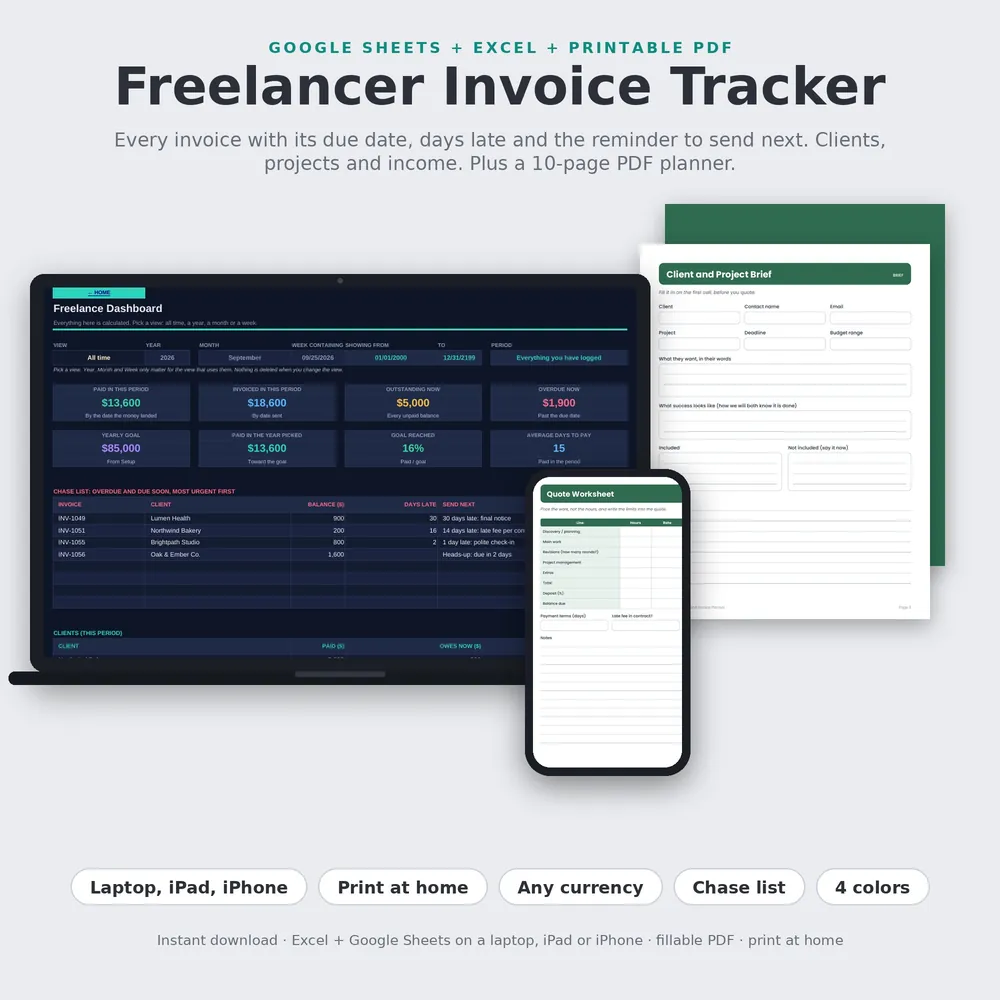
Who owes you, how late, and which reminder to send next. Excel + Google Sheets + PDF planner, $16.99.