Can AI build me a free budget tracker instead of a budgeting app?
Yes. AI can set up a Google Sheets or Excel budget tracker with formulas, so you stop paying for an app.
01Why bot
- Spreadsheet formulas are a reliable AI strength.
- You control your data; no bank login needed.
- It won't auto-import transactions the way paid apps do.
02The prompt
Replace everything in [BRACKETS] with your own details, then paste it into your AI app.
Design a monthly budget tracker for [Google Sheets / Excel].

Categories I want: [LIST OR "suggest common ones"]
Income sources: [LIST]

Give me:
1. The exact sheet layout (tab names, column headers, which cell goes where).
2. Every formula I need, with the cell it goes in: category totals, remaining budget, % spent, monthly summary.
3. Conditional formatting rules to turn a category red when it's over budget.
Explain each step for a beginner. Use only standard built-in functions.
03Steps
- Create a blank spreadsheet.
- Follow the layout and paste in each formula.
- Enter a week of spending to check the totals work.
04What can go wrong
- Test formulas with sample numbers before trusting them.
05What to use
06Our test runs
2 runs, each with a different made-up sample. 2 of 2 passed every check.
The made-up sample:
[Google Sheets / Excel]Google Sheets[LIST OR "suggest common ones"]Housing, Utilities, Groceries, Transportation, Entertainment, Savings, Miscellaneous[LIST]Salary, Freelance Design, Rental Income
- Provide exact sheet layout with tab names and cell locations
- List every required formula with its destination cell
- Include conditional formatting rule to flag over‑budget categories
- Explain each step for a beginner using only built‑in functions
- Didn't make up details we never gave it
What came back (excerpt):
I'll guide you through creating a monthly budget tracker in Google Sheets.
Read the full answer
I'll guide you through creating a monthly budget tracker in Google Sheets.

**Step 1: Setting up the sheet layout**

Create a new Google Sheet and set up the following tabs:

1. **Income**: This tab will track your income from different sources.
2. **Budget**: This tab will track your expenses and remaining budget.
3. **Summary**: This tab will provide a monthly summary of your expenses.

In the **Income** tab:

| Column Header | Cell Range |
| --- | --- |
| Income Source | A1 |
| Income Amount | B1 |
| Salary | A2 | B2 |
| Freelance Design | A3 | B3 |
| Rental Income | A4 | B4 |

In the **Budget** tab:

| Column Header | Cell Range |
| --- | --- |
| Category | A1 |
| Budgeted Amount | B1 |
| Actual Spend | C1 |
| Remaining Budget | D1 |
| % Spent | E1 |
| Housing | A2 | B2 | C2 | D2 | E2 |
| Utilities | A3 | B3 | C3 | D3 | E3 |
| Groceries | A4 | B4 | C4 | D4 | E4 |
| Transportation | A5 | B5 | C5 | D5 | E5 |
| Entertainment | A6 | B6 | C6 | D6 | E6 |
| Savings | A7 | B7 | C7 | D7 | E7 |
| Miscellaneous | A8 | B8 | C8 | D8 | E8 |

In the **Summary** tab:

| Column Header | Cell Range |
| --- | --- |
| Category | A1 |
| Total Spend | B1 |
| Housing | A2 | B2 |
| Utilities | A3 | B3 |
| Groceries | A4 | B4 |
| Transportation | A5 | B5 |
| Entertainment | A6 | B6 |
| Savings | A7 | B7 |
| Miscellaneous | A8 | B8 |

**Step 2: Entering formulas**

In the **Income** tab:

* Total Income: `=SUM(B2:B4)` in cell B5

In the **Budget** tab:

* Category Totals: `=C2` in cell C2 (and copy down to C8)
* Remaining Budget: `=B2-C2` in cell D2 (and copy down to D8)
* % Spent: `=(C2/B2)*100` in cell E2 (and copy down to E8)
* Total Budgeted Amount: `=SUM(B2:B8)` in cell B9
* Total Actual Spend: `=SUM(C2:C8)` in cell C9
* Total Remaining Budget: `=SUM(D2:D8)` in cell D9

In the **Summary** tab:

* Total Spend: `=SUM(C2:C8)` in cell B1
* Category Totals: `=Budget!C2` in cell B2 (and copy down to B8)

**Step 3: Conditional formatting**

To turn a category red when it's over budget, follow these steps:

1. Select the range of cells you want to apply the formatting to (e.g., D2:D8).
2. Go to the "Format" tab in the top menu.
3. Click on "Conditional formatting".
4. Select "Custom formula is" from the dropdown menu.
5. Enter the formula: `=C2>B2` (and adjust the column letters as needed).
6. Click on the "Format" button and select a red fill color.
7. Click "Done".

Repeat this process for each category.

**Tips and explanations**

* The `SUM` function adds up a range of cells.
* The `=C2` formula simply references the value in cell C2.
* The `=B2-C2` formula calculates the remaining budget by subtracting the actual spend from the budgeted amount.
* The `=(C2/B2)*100` formula calculates the percentage spent by dividing the actual spend by the budgeted amount and multiplying by 100.
* Conditional formatting applies a format to a cell or range of cells based on a condition (in this case, when the actual spend exceeds the budgeted amount).

By following these steps, you'll have a basic monthly budget tracker set up in Google Sheets. You can customize and expand it as needed to fit your specific budgeting needs.
Verify that cell references in formulas match the intended categories.
The made-up sample (a messier one):
[Google Sheets / Excel]Google Sheets (I usually edit it online, but sometimes I export to Excel for printing)[LIST OR "suggest common ones"]Rent, Utilities (electric, water, internet), Groceries, Eating Out, Transportation (gas, public transit), Subscriptions (Netflix, Spotify), Insurance, Savings, Miscellaneous[LIST]Salary (full‑time job), Freelance design projects, Rental income from spare bedroom, occasional cash gifts from family
- Provide exact sheet layout with tab names, column headers, cell locations
- Give every formula needed, with the cell it goes in
- Include conditional formatting rules to turn a category red when over budget
- Explain each step for a beginner
- Didn't make up details we never gave it
What came back (excerpt):
I'll guide you through creating a monthly budget tracker in Google Sheets.
Read the full answer
I'll guide you through creating a monthly budget tracker in Google Sheets. We'll set up a simple and easy-to-use tracker that meets your requirements.

**Step 1: Setting up the sheet layout**

Create a new Google Sheet and set up the following tabs:

1. **Income**: This tab will track your income sources.
2. **Expenses**: This tab will track your expenses by category.
3. **Budget**: This tab will display your budget summary.

In the **Income** tab:

| Column Header | Column Letter |
| --- | --- |
| Income Source | A |
| Budgeted Amount | B |
| Actual Amount | C |

In the **Expenses** tab:

| Column Header | Column Letter |
| --- | --- |
| Category | A |
| Budgeted Amount | B |
| Actual Amount | C |

In the **Budget** tab:

| Column Header | Column Letter |
| --- | --- |
| Category | A |
| Budgeted Amount | B |
| Actual Amount | C |
| Remaining Budget | D |
| % Spent | E |

**Step 2: Setting up income sources**

In the **Income** tab:

1. In cell A1, enter "Income Source".
2. In cell B1, enter "Budgeted Amount".
3. In cell C1, enter "Actual Amount".
4. In cells A2:A5, enter your income sources:
	* A2: Salary
	* A3: Freelance design projects
	* A4: Rental income
	* A5: Cash gifts
5. In cells B2:B5, enter your budgeted amounts for each income source.
6. In cells C2:C5, enter your actual amounts for each income source.

**Step 3: Setting up expense categories**

In the **Expenses** tab:

1. In cell A1, enter "Category".
2. In cell B1, enter "Budgeted Amount".
3. In cell C1, enter "Actual Amount".
4. In cells A2:A11, enter your expense categories:
	* A2: Rent
	* A3: Utilities
	* A4: Groceries
	* A5: Eating Out
	* A6: Transportation
	* A7: Subscriptions
	* A8: Insurance
	* A9: Savings
	* A10: Miscellaneous
5. In cells B2:B11, enter your budgeted amounts for each category.
6. In cells C2:C11, enter your actual amounts for each category.

**Step 4: Setting up budget summary**

In the **Budget** tab:

1. In cell A1, enter "Category".
2. In cell B1, enter "Budgeted Amount".
3. In cell C1, enter "Actual Amount".
4. In cell D1, enter "Remaining Budget".
5. In cell E1, enter "% Spent".
6. In cells A2:A11, enter your expense categories (same as in the **Expenses** tab).
7. In cells B2:B11, enter the budgeted amounts for each category (same as in the **Expenses** tab).
8. In cells C2:C11, enter the formula `=Expenses!C2` (and drag down to C11) to link the actual amounts from the **Expenses** tab.

**Step 5: Formulas for category totals, remaining budget, and % spent**

In the **Budget** tab:

1. In cell D2, enter the formula `=B2-C2` to calculate the remaining budget for the first category (Rent). Drag this formula down to D11.
2. In cell E2, enter the formula `=(C2/B2)*100` to calculate the % spent for the first category (Rent). Drag this formula down to E11.

**Step 6: Conditional formatting rules**

To turn a category red when it's over budget, follow these steps:

1. Select the range C2:C11 in the **Budget** tab.
2. Go to the "Format" tab in the top menu.
3. Click on "Conditional formatting".
4. In the format cells if dropdown, select "Custom formula is".
5. Enter the formula `=C2>B2` (this will check if the actual amount is greater than the budgeted amount).
6. Click on the "Format" button and select a red fill color.
7. Click "Done".

Repeat this process for the range D2:D11 to highlight categories with a negative remaining budget (i.e., over budget).

**Step 7: Monthly summary**

To calculate your total income, total expenses, and remaining balance, follow these steps:

1. In the **Budget** tab, add the following formulas:
	* Total Income: `=SUM(Income!C2:C5)`
	* Total Expenses: `=SUM(Expenses!C2:C11)`
	* Remaining Balance: `=SUM(Income!C2:C5)-SUM(Expenses!C2:C11)`
2. Place these formulas in cells below the category list, for example:
	* Total Income: cell A12
	* Total Expenses: cell A13
	* Remaining Balance: cell A14

That's it! Your monthly budget tracker is now set up. You can enter your actual income and expenses, and the formulas will automatically calculate your remaining budget and % spent for each category. The conditional formatting rules will highlight categories that are over budget.
How each run works: we fill the prompt with a made-up sample, run it once in Llama 3.3 70B, and GPT-OSS 120B grades the answer against the prompt's own rules. Word limits are counted by code, and every quote flagged as made up is checked against the full answer. Your results can differ. How we test.
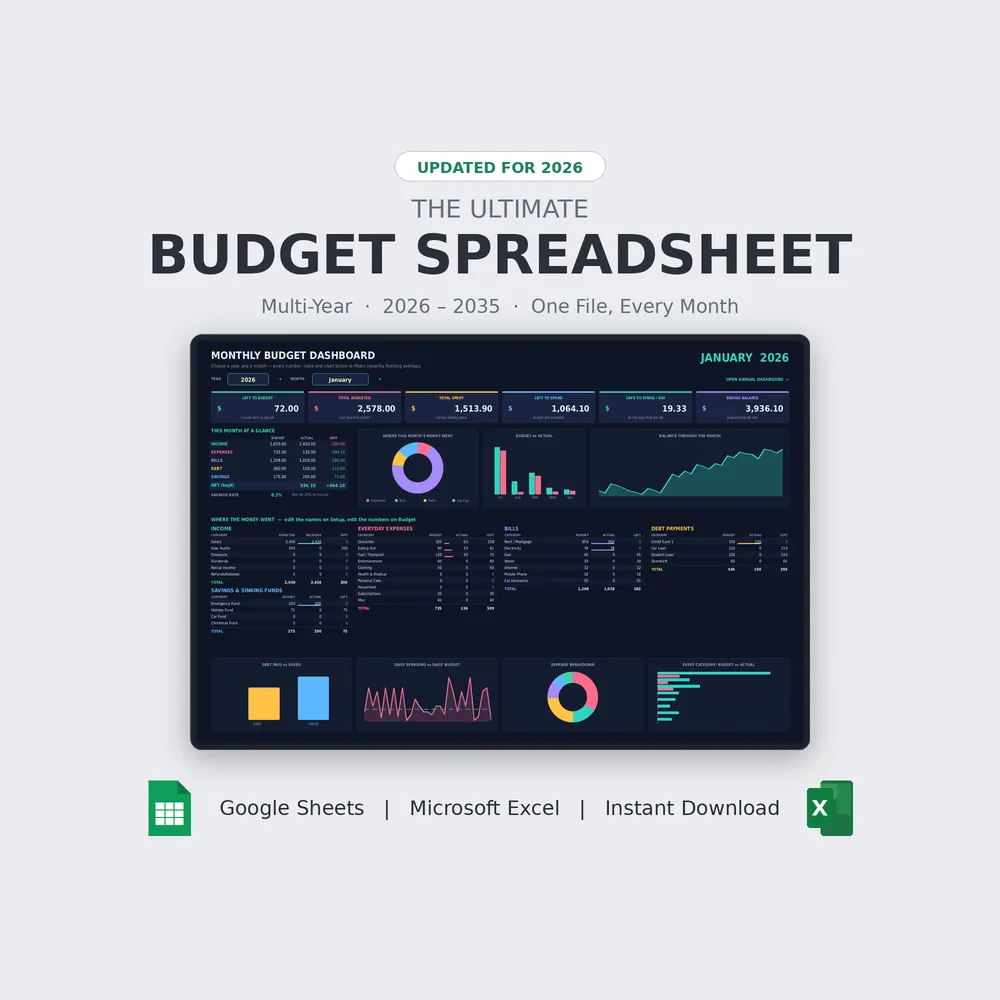
Every month, every year, in one file (2026 to 2035). Excel + Google Sheets, $19.99.